Nuvera Support Hub

Browse topics below or call us at 844.354.4111.
For business support, please call 844.610.5300 or click the tab below.
Check the Nuvera Outage Map for fiber internet service disruptions in your area.

Account Management

Videos
online account FAQs

Go to nuvera.net/my-account or select My Account in the black top menu bar and click on Manage Your Account

Click on Create Your Account Now, beneath the Sign In button. 

Complete the information on the registration page including first name, last name, email address – which must match the one on your Nuvera main account – mobile number and your account number. 

You will need to get your account number when you get your first paper bill. This appears in the upper right-hand corner of your paper bill right beneath the statement date. 

Don’t forget to click the privacy policy recognition and the register button at the bottom of the registration page when you are finished. 

After clicking the register button, on the next screen, click continue. 

Then be sure to click the confirm button and you will be taken into your account. 

After registering, you’ll get an email with a link to create your password. The link in the email will take you to the password creation and confirmation page. Follow the instructions to finish setting your password. 

Your password must be at least 8 characters long and must contain at least three of: upper case letters, lower case letters, numbers, and special characters shown here: ! @ # € % & . , $ + § / ( ) = * ; : _ – 

To sign up for paperless billing simply click the button that says go paperless next to the mailbox icon. After you’ve enrolled, your bill will be created and displayed online. You will receive an email notification when your bill is available to view online. 

Click here for step-by-step instructions with photos or to watch the instructional video.

Customer Links lets primary users who have more than one customer account in our billing system view them under one login. This makes it easy to add accounts, switch between accounts and see statements or other details—all from one secure sign-in.

Note: Customer Links only lets you view and access multiple accounts. It does not create new users or logins. This option will only appear if you are a Primary User.

Go to nuvera.net/my-account or select My Account in the black top menu bar and click on Manage Your Account. Sign in using your account using your user name and password.
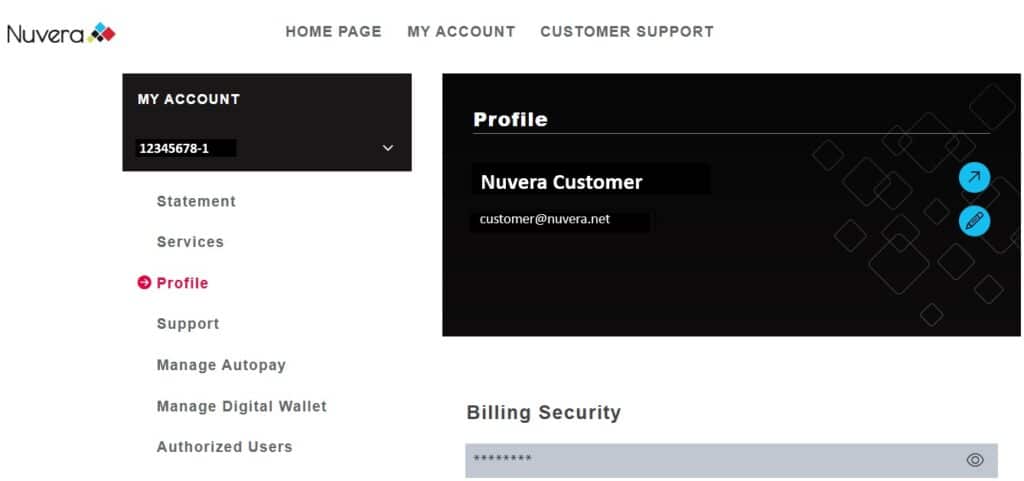
Once logged in, go to My Account

Click Customer Links (left menu)

Enter the Customer Number you want to add. Note: You must already know the Customer Number—there is no search or lookup feature.

Click Submit.

Depending on the email address on the account you entered:

  • If the main contact email matches your own: The account is linked automatically and will appear in your list.
  • If the main contact email is different: The account is added as Pending. The Main Contact for that account will receive an email asking them to approve or deny the request.

Once approved, the account will automatically appear under your Linked Accounts.

Go to nuvera.net/my-account or select My Account in the black top menu bar and click on Manage Your Account. Sign in using your account using your user name and password.

Once logged in, go to My Account.

Click on Services in the left-hand menu. You’ll see a list of all Service Accounts related to the selected Statement.

Each service shows key info at a glance:

Account Type: Represented by a helpful icon

  • ID: This changes depending on the type of service—like a username for Internet or a phone number for Phone.
  • Service Account Number: A unique number that identifies the service 
  • Account Status: Tells you if the service is ActiveDisconnected, or Temporarily Suspended.
  • Disconnect Reason: If applicable, you’ll see why a service is disconnected or paused.


Disconnected Services: If you’ve had any services permanently disconnected, you’ll see a toggle switch on your services page. Simply turn the toggle on to view details about those disconnected services, and turn it off to hide them.

Go to nuvera.net/my-account or select My Account in the black top menu bar and click on Manage Your Account. Sign in using your account using your user name and password.

In the black Profile box, click the pencil icon to edit your profile.

In the left menu, select Change Password.

Enter your current password and your new password in the fields provided.

Be sure to follow the password requirements shown below the fields.

Click Update Password.
You’ll receive a confirmation message once your password is successfully updated.

Your Billing Security Code is a 4-digit code used by our Customer Service team to verify your account when needed. This code cannot be changed online and is only visible to Primary and Authorized Users.

To view the code:

Go to nuvera.net/my-account or select My Account in the black top menu bar and click on Manage Your Account. Sign in using your account using your user name and password.

Click the eye icon next to the Billing Security field. If you have the proper access, the code will be revealed.

Need to give someone else access to your online account? No problem! Priority and Authorized Users can invite others to create their own login credentials—perfect for sharing account access with a partner, roommate, or family member.

Here’s how to add a new user:

Go to nuvera.net/my-account or select My Account in the black top menu bar and click on Manage Your Account. Sign in using your account using your user name and password.

Once signed in, go to the My Account page.

Select Authorized Users from the menu.

Click Add Authorized User 

Enter the name and email address of the person you’d like to invite.

Select their access permissions and click Save 

They’ll receive an email letting them know they’ve been invited by you. Once they accept and create their login, they’ll have access based on the permissions you’ve set.

bill pay faqs

Here are instruction for reading your monthly bill from Nuvera.

There are three ways to pay your bill online: 

  1. A one-time payment
  2. Recurring credit/debit card payments
  3. Recurring ACH payments – An ACH payment is an electronic money transfer from banks and credit unions that uses the Automated Clearing House (ACH) network.


A $3.05 payment processing fee will be applied to all payments made by credit or debit card.  The processing fee will not apply to ACH payments.

To add a method of payment either with a credit/debit card or using ACH payments: 

Go to https://nuvera.net/my-account/ or select My Account in the black top menu bar and click on Manage Your Account.

Complete the login.

Click the Make a Payment button

Follow the steps using your favorite method—Credit/Debit Card, E-Check, or even PayPal and Venmo.

There are two autopay options: 

  1. Recurring credit/debit card payments
  2. Recurring ACH payments – An ACH payment is an electronic money transfer from banks and credit unions that uses the Automated Clearing House (ACH) network. 


A $3.05 payment processing fee will be applied to all payments made by credit or debit card.  The processing fee will not apply to ACH payments.

To add autopay using either a credit/debit card or using ACH payments: 

Go to nuvera.net/my-account and select Manage Your Account.

Log in to your Nuvera Account

Click on Manage Autopay in the menu on the left,

Follow the steps to get started. 

There are three easy ways to pay your bill:

By Mail
Just drop your bill stub and check in the mail and send it to: P.O. Box 697, New Ulm, MN 56073

Online
Skip the line and pay anytime! Go to https://nuvera.net/my-account/ or select My Account in the black top menu bar and click on Manage Your Account. Complete the login, click the Make a Payment button, and follow the steps using your favorite method—Credit/Debit Card, E-Check, or even PayPal and Venmo.

In Person
Love a friendly face? Drop by one of our Nuvera Retail Locations to pay your bill in person. We’ll be happy to help! 

Yes! You can see all your past payments in your payment history. Go to the Payment History section to see what’s been paid, when and how.  There are easy to understand icons that provide more details about each payment.

Absolutely! You can easily check out your detailed monthly bill and download a copy whenever you need it.  Just go to the Bill History  section in My Account. You’ll see up to a year of past invoices, including the date and amount for each one. 

To view, download, or print your bills: 

  1. Find the invoice you want and click the chevron (the little > arrow) next to the amount. 
  2. A PDF of the bill will pop up—then you can view it, save it, or print it from there.
paperless billing faqs

Prefer a cleaner inbox over a full mailbox? With paperless billing, you can choose to stop receiving printed statements and access everything digitally—convenient and environmentally friendly.

To opt in for paperless billing:

Go to nuvera.net/my-account or select My Account in the black top menu bar and click on Manage Your Account. Sign in using your account using your user name and password.

Click the Go Paperless button located next to the mailbox icon.

If your account meets the requirements, you’ll see a confirmation message: “Thank you for going paperless!” A confirmation email will also be sent to the main contact, and your paper statements will stop starting with the next billing cycle.

Yes. While we encourage all customers to enroll in paperless billing, we understand that there are some individuals who would prefer to receive a paper bill. To help offset a small portion of the cost to print and mail an invoice, customers who wish to receive a paper invoice will be charged a $5.00 monthly paper bill fee.

Only authorized account holders who have established a Nuvera e-billing account with email and password can access an e-billing account. Unless you provide your login information to someone else, you are the only person who has access to your Nuvera account.

The due date of your invoice will be clearly stated on your electronic invoice. In most cases, the electronic invoice is available to view several days before a paper bill is received in the mail.

Customers should write their account number on their check. Cash should not be put in the Nuvera drop box.

Internet & Home Wi-Fi

View the Nuvera Internet Outages Map

Videos
Guides and Instructions

Email Setup Instructions

How to Reboot Your Modem

How to Change Your Email Password

Nuvera Home Wi-Fi Help

Internet FAQs

Learn how to enable SMTP authentication for iPhone/iPad, Android, Outlook, and MacMail with our SMTP Authentication Guide.

Your internet may be slow because of its bandwidth. Internet with higher bandwidth, or speed, gives you a faster and better experience than internet with lower bandwidth. Learn more about bandwidth and internet speeds.

If you have received notification that an email message you sent has been blocked, it could be caused by several reasons. Please confirm the email address you used was correct. If this was not the issue, please contact us for help determining the cause of the message.

There are a number of reasons that can cause an intermittent or failing connection. If you are experiencing a problem with your Internet connection, feel free to contact us and we would be happy to help you troubleshoot. If you’d like to troubleshoot yourself first, you can try these methods.

View the Nuvera Internet Outages Map to monitor current internet service disruptions in your area.

Streaming TV

Channel Programming & Pricing

watchTVeverywhere

NuStream TV FAQs

StreamNow Guide


Digital TV

guides and channel Lineups

TV Troubleshooting Guide

DVR Guide

watchTVeverywhere

Remote Instructions

Nuvera Remote User Guide

Nuvera Remote User Guide – Prior Lake

Nuvera Remote User Guide – Glencoe

Nuvera Remote Programming

Potenza Remote Instructions

Potenza TV Setup Codes

Pulse URC2069 Remote Instructions
*To program the Pulse URC2069 for your cable box:
Press and hold Setup along with the number 5 on the keypad until the indicator light flashes twice (around 3 seconds).

Voice

guides and instructions

Calling Feature Guide

Voicemail User Guide

Lifeline TAP Programs

voice faqs

911 Charge – A 911 charge is a fee assessed by the state and sent to the county to pay for 911 emergency services for the state.

FCC End User Charge – Fee ordered by the Federal Communication Commission as part of a move away from charging customers more for long distance telephone service, in order to keep telephone rates low. The charge is used to recover portions of the cost of providing the telephone line from the customer to the local telephone company that in the past were recovered through long distance charges.This is sent to a Federal pool and then distributed.

Residence Line Charge – Monthly rate charged to connect a residential customer to the telephone network.

Business Line Charge – Monthly rate charged to connect a business customer to the telephone network.

Telephone Assistance Plan – This is a state mandated surcharge that enables a program to lower the cost of local phone service for persons who have a disability and meet income guidelines or who are at least 65 years of age and meet income guidelines.

Tele Relay Service Charge – This is a state mandated surcharge to help fund the cost of “translation” service for calls between people who have hearing or speech disabilities and voice telephone customers.

Email

Videos
Guides and Instructions

Email Setup Instructions

Email Login

How to Enable SSL/TLS in MagicMail

How to Update Country Restrictions

How to Update Port Settings

Spam Management

email FAQs

If you have received notification that an email message you sent has been blocked, it could be caused by several reasons. Please confirm the email address you used was correct. If this was not the issue, please contact us for help determining the cause of the message.

Remote-forwarded emails are often rejected by remote servers due to authenticated mail server checks. Therefore, Nuvera email accounts cannot be forwarded.  To ensure email delivery and access, please set up a separate IMAP account in your email account instead of using remote forwarding.

Please refer to our email settings page for more information on how to set up your email.

  1. Log in to your Nuvera e-mail.
  2. Click on Webmail.
  3. Choose Webmail Lite or Tuxedo. Instructions for each are the same.
  4. On the bottom left side, you will see a pie chart with your percentage used.
  5. To delete messages, choose from one of the following:
    • Click on the message and then click delete on top.
    • Click on the first message, hold shift to select adjacent messages, and then click delete on top.
    • On the bottom, there is a ‘select’ drop down box. You can choose the option that best suits your needs, and then click delete at the top.
  6. After you are done deleting messages click “Refresh” in the upper left of your screen.
  7. The “Quota Usage” percentage will update.

Please note that if your “Quota Usage” exceeds 100% you will not be able to receive any new messages. If you receive an email related to exceeding your email account quota, please contact Nuvera for tips on freeing up space and other options.

Yes, SPAM filtering is automatically included with your Nuvera email account.  You can go to our SPAM Management Guide for directions on how to check if any emails have been stopped, or to add email addresses to your block list and safe list.

Please browse out SPAM Management Guide for directions on how to locate the missing email, and add email addresses to your block list and safe list.

You can use the Webmail system to check your email from any Internet enabled computer.

The best way to do this would be to sign up for our Hosted Microsoft Exchange service.  This service will allow you to sync all your data associated with your email account.  This includes messages, contacts and calendar information.

A second option would be to set up your email as IMAP in your email client (ex – Windows Mail or Outlook).  Please see the Email Setup Instructions for information on how to do this by clicking on your email client.

If you have any questions please contact a member of the Technical Support Team to assist you.

Fiber Construction Info

Information & availability

Fiber Construction Information

Check Availability

Fiber FAQs

One word: speed. If you want the fastest Internet possible, you need fiber. Other benefits include unlimited data; lower latency (or delay in data transfer); equal upload and download speeds; reliability; and increased property value for your home or business.

A Network Interface Device (NID) is the crucial component that connects your home or business to the Nuvera fiber network. This small, durable box (approximately 12” tall by 10” wide) is installed on the exterior of your property at no cost to you and serves as the termination point for the fiber drop cables. From the NID, your internet service is seamlessly delivered to the inside of your home or business. 

A telecommunications pedestal is a metal or plastic box that grants access to underground fiber optic cable for technicians. A pedestal allows technicians to quickly and easily access fiber for splicing and other vital actions needed for implementing or repairing the connection to your home.

The Optical Network Terminal (ONT) is a key piece of equipment for fiber internet installation, acting as the crucial link between the fiber network and your home’s internal internet and phone systems. Comparable in size to a standard modem or router, the ONT is designed to convert the optical signal from the fiber cable into separate signals for internet and phone services. During installation, a Nuvera technician will place the ONT inside your home, near an existing electrical outlet as the ONT requires power to operate. Additionally, if your home already has existing internet service, the ONT is typically installed in the same area to utilize the current cabling for a smoother transition. This careful placement process ensures a reliable connection and seamless integration with your home or business network.

A mainline is the primary fiber cable that Nuvera installs to bring fiber internet to your area. This cable is buried in alleyways, utility spaces, or rights-of-way so it doesn’t usually disturb private property. Along the mainline, connection points called pedestal cabinets are installed, which can provide service to multiple locations nearby.

The cable that connects the customer’s house the mainline is called the drop cable. The drop cable is buried through the customer’s yard. To prevent digging up other utilities, our installation crew locates existing public services to the house. Homeowners are responsible for locating and marking private utilities such as dog fences and sprinkler systems. 

In the majority of cases, customers are required to use a Nuvera modem. Our goal is to give you the best Internet experience possible, and our specially dedicated modem is part of the system that will achieve that goal.

No, the Nuvera modem does not deliver Wi-Fi and a separate router will be required. The router broadcasts the Wi-Fi signal, bringing the Internet to your devices. For an additional small monthly fee, Nuvera Home Wi-Fi can be implemented and managed in your home, taking the work out of managing and maintaining your home Wi-Fi setup. Add Nuvera IQ to Home Wi-Fi and you can customize your home network to your specific needs with just a few taps from your phone.

Fiber Internet affords benefits such as faster speeds, unlimited data; lower latency (or delay in data transfer); equal upload and download speeds; reliability; and increased property value for your home or business.

1 Gig is equal to 1000 Mbps. 8 Gig is the fastest Internet speed available.

Deciding how much speed is necessary for your household, ask the following questions: How many people use the Internet at the same time? How many devices are generally being used at the same time? What are those devices being used for – i.e. gaming, streaming, surfing? The more users and devices on the network, the faster the speed you will require for the best Internet experience. Visit our Bandwidth Estimator.

Nuvera will indicate in the right-of-ways where the fiber will be placed. Flags or paint markings will be placed. All public utilities in the construction areas will be marked by the respective utility company. Please do not remove any flags or paint markings. Flags will be removed after construction is complete and paint markings will fade on their own.

Nuvera will restore any disruption to your lawn/landscaping after fiber is buried to your home. This will be a two-part process:

  • First step is to fill holes with sand, which allows time for settling before final restoration while making the construction area safe for children, pets, etc.
  • Next step is for the contractor to return and complete the site restoration after construction is complete. This includes filling the impacted areas with black dirt/topsoil and grass seed.

Homeowners are responsible for locating and marking any private underground facilities such as: invisible fencing, irrigation lines, private power, etc. For more information, go to the Gopher State One Call website.

In the unlikely event that there is a significant disruption to your property, Nuvera guarantees the restoration of any landscaping, etc.

In order to take advantage of fiber Internet, you will need fiber equipment installed at your house. Nuvera’s crews and our construction partners will install all the equipment needed to implement fiber Internet in your home. If the equipment is installed during our construction phase, there is no charge to the property owner.

Installation of the fiber facilities and equipment will be free if done during our construction phase. Current customers are required to transition to our new fiber network and will be done at no charge.

It is best to have the fiber equipment installed when our crews are in your area. Service must be established within 60 days of becoming available or a $250 construction fee will be charged. If our crew does not install the fiber equipment at the same time as the rest of your neighborhood and you decide at some point in the future you want to move ahead with Nuvera high-speed fiber Internet, you can call our office and schedule a time for our crew to come back out and complete the line to your home. A $250 construction fee will apply or will be waived if you commit to a 2-year agreement.

Business Support

844.610.5300

Monday – Friday: 7:30 AM – 9:00 PM
Saturday: 9:00 AM – 4:00 PM

business Resources

How to Read Your Bill From Nuvera

business support form

"*" indicates required fields

Name*
Email*
Preferred Contact Method